“Just one more stop”—
then you wake up at the end of the line.
- 01
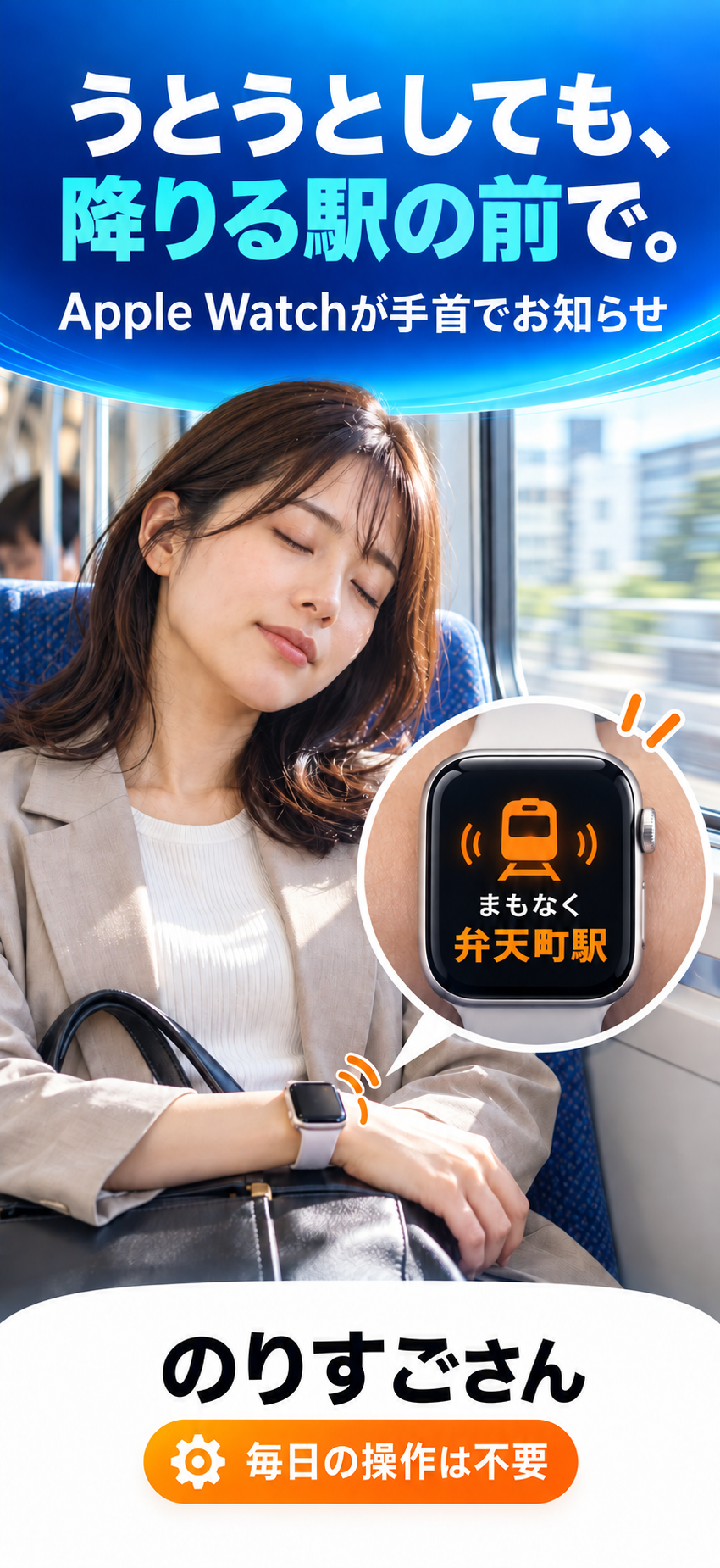
After a long day, you sit down and drift off.
- 02
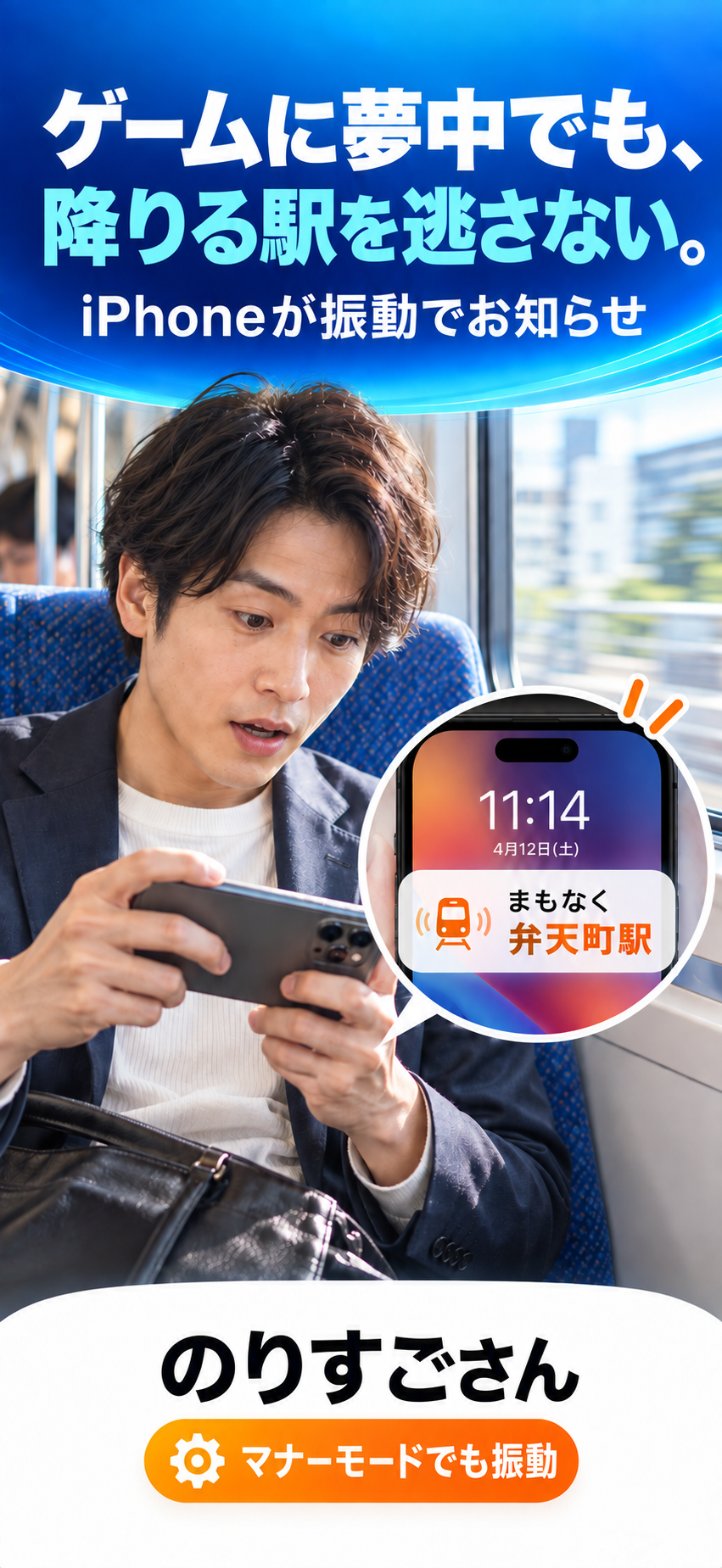
You are so absorbed in a video or game that you miss the announcement.
- 03
On an unfamiliar route, you cannot relax because you keep checking the stops.
Not by time.
By location.
A regular alarm rings at a fixed time. If the train is delayed, the timing is wrong.
Norisugosan alerts you when it detects that you are actually approaching your stop.
Asleep or absorbed.
On Apple Watch or iPhone, get an alert before Bentencho Station. Here is how it fits into your daily ride.
Set it once.
Then do nothing.
Choose your stop
Search by station name or pick it on the map. Save home and work stations for quick access.
Allow location “Always”
With location set to “Always,” the app can watch your route even when it is closed. That is all the setup you need.
Get alerted before your stop
Only when your train approaches, Apple Watch or iPhone alerts you automatically. No daily operation needed.
Choose the right distance
for each route.
Closely spaced city stations and far-apart suburban stops need different timing.
Choose from 300 m to 3 km for each station.
- Metro and short city stops
- 300–500 m
- Suburban and regional lines
- 1 km
- High-speed or widely spaced stops
- 2–3 km
Apple Watch or iPhone—
it switches automatically.
No need to operate your Watch each time. When iPhone is locked and your Watch is on your wrist, the alert normally goes to your Watch. When you are using iPhone or Watch is unavailable, it goes to iPhone.
WITH APPLE WATCH
A tap on your wrist.
Install the Watch app once. When iPhone is locked, Apple’s standard notification behavior prioritizes the Watch you are wearing.
iPHONE ONLY
iPhone when needed.
If you are using iPhone, or Watch is not worn, locked, or disconnected, the alert automatically appears on iPhone instead.
Apple’s operating system decides whether an alert appears on Apple Watch or iPhone based on lock state, connection, and notification settings. If Silent Mode is off, iPhone may also play a notification sound.
Small details
make it dependable.
Earlier alerts on faster trains
It estimates seconds to arrival from your speed and alerts earlier on express services.
Battery conscious
GPS is used only for the few minutes near your stop. Until then, iPhone’s low-power system waits in the background.
Avoid alerts at the previous stop
If another station falls inside your chosen distance, the map warns you and suggests a better setting.
Choose the vibration pattern
A gentle reminder or a persistent wake-up.
No account. No server upload.
No registration required. Your location and station data stay on your iPhone.
Quiet when you are at home
Alerts require an approach at 30 km/h or faster, so living near a station or walking toward it will not trigger one.
Try it for 5 days
on the route
you actually ride.
Response timing can vary with signal conditions on metros, mountain routes, and other lines.
That is why every feature is free for the first 5 days. If it works for you, unlock it with one purchase.
- FIRST 5 DAYSFree
- FROM DAY 6One-time purchase
¥300ONE TIME
- No monthly fee or subscription
- No automatic charge after the free trial
- Unlimited use with every feature
- Restore your purchase on a new device
Price shown for Japan. Your App Store displays the local price for your region.
Set it up for reliable alerts.
Allow notifications and set Location to “Always” during initial setup. If you use Apple Watch, also confirm that the Watch app is installed and notifications are enabled.
Set Location to “Always”
With “While Using” or Location turned off, automatic monitoring cannot work while the app is closed.
Alert device depends on its state
When iPhone is locked and an unlocked Watch is on your wrist, the alert normally goes to Watch. While using iPhone, it normally goes to iPhone.
Use an earlier alert underground or at speed
GPS and cellular conditions can delay detection. Choose a wider alert distance on metros and high-speed trains.
Do not rely on alerts for safety
This app only assists with missed-stop prevention. Delivery and timing cannot be guaranteed because they depend on power, signal, permissions, and operating-system conditions.
Frequently asked questions
QDoes it work on the metro?
Yes. Location accuracy may be lower underground, so alerts can arrive later than above ground. Use the free 5-day trial to check your regular route. A wider alert distance can also help.
QHow much battery does it use?
Away from your stop, the app waits using iPhone’s low-power system based on Wi-Fi and cellular signals. GPS is used only for the few minutes near your stop, keeping battery impact low.
QCan I use it without Apple Watch?
Yes. iPhone alone can alert you with repeated vibrations.
QDo I need to operate Apple Watch each time?
No. Install the Watch app once and allow notifications. When iPhone is locked and you are wearing Watch, the alert normally appears on Watch automatically.
QWill it make a sound on the train?
In Silent Mode it uses vibration without sound. If Silent Mode is off, iPhone may play one notification sound.
QDo I need to open the app every day?
No. Once you save a station and set Location to “Always,” it monitors automatically every day even while the app is closed.
QWill it always alert at the exact place?
Delivery and timing cannot be guaranteed. Alerts may be late or not arrive because of underground or mountain routes, high-speed travel, power, location, notification, Focus, or other device conditions. Test it on your usual route during the first 5 days.
QCan it alert when I drive near a station?
It can. iPhone cannot distinguish a train from a car, so approaching a station above 30 km/h may trigger an alert. On days you drive, use the switch on the app’s home screen to pause monitoring.
QWill I be charged automatically after the trial?
No. Monitoring stops when the free period ends, with notices sent the day before and on the final day. Purchase only if you choose to continue.
QIs my location sent anywhere?
No. There is no account registration and no communication with our server. Apple’s map search is used only when you search for a station.
QDo I need to buy it again on a new phone?
No. Sign in on the new iPhone with the same Apple ID and tap “Restore Purchases” in the app. There is no extra charge.
Starting with your next ride,
never miss your stop.
Try it free for 5 days on the train you normally take.
Requires iOS 17 or later / watchOS 10 or later